

Product · October 23, 2026
10 Hidden Mac Finder Search Filters and Operators You Probably Don't Know
Unlock advanced Boolean operators, negative search exclusions, and hidden attribute filters built directly into macOS Finder.

SearchOnMac Team
macOS Tips & Tricks · 5 min read
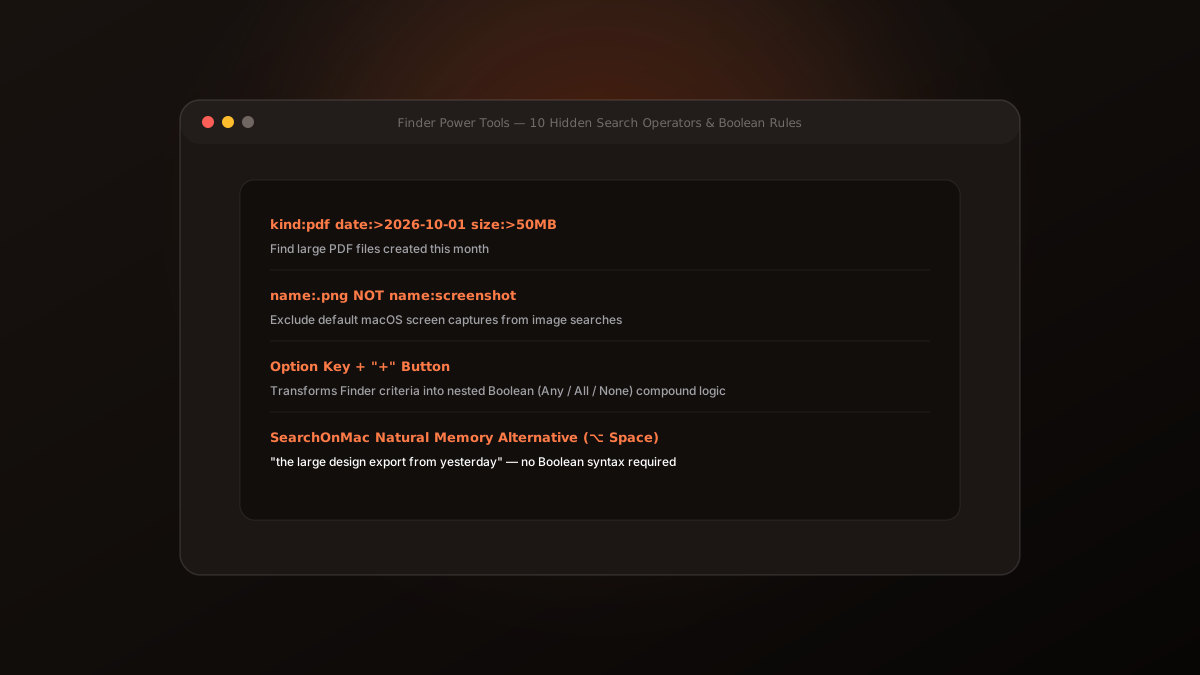
Most Mac users know how to type into Finder's search box, but few know that Finder contains a powerful Boolean filtering engine hidden behind modifier keys. Here are 10 operators to master.
1. The Option Key '+' Trick for Nested Boolean Logic
When searching in Finder (⌘ F), holding down the Option key (⌥) transforms the '+' button into '...'. Clicking it creates a compound Boolean group (Any, All, or None), letting you construct nested AND/OR/NOT logic.
2. Negative Exclusion Operator (NOT or '-')
To search for images while excluding screenshots, you can type 'kind:image NOT screenshot' or 'name:.png -screenshot'. Finder immediately filters out the noise.
3. Raw Query Attributes
In Finder's attribute selector, choosing 'Other...' gives access to over 100 hidden metadata keys, including kMDItemFSSize, kMDItemAuthors, and kMDItemPixelHeight.
Finder's hidden operators give you forensic precision when you need it. For instant daily searches, memory launchers like SearchOnMac decode these filters automatically.