

Engineering · September 28, 2026
How Fast Is SearchOnMac? We Timed 83 Real Searches
Median 90 ms to first results, and the right answer first in 83 of 84 searches. Here is how we measured it, broken down by what was being searched.

SearchOnMac Team
Engineering · 5 min read
Speed claims are easy to make and hard to check, so we measured ours on real data. We ran 84 searches that we actually use day to day through the installed app on a working Mac, with its real files, windows, browser tabs, mail and calendar, and timed every one.
How We Measured
The app has an evaluation mode that runs a list of searches through the same pipeline you use, with the app's own permissions, and records when results first appear and what came first. The searches were a mix of 'open linkedin in chrome', 'latest screenshot', 'where did I use firebase auth', 'what did I do today' and typos like 'antygravity'.
The Results
Across 83 timed searches, the median time to first results was 90 ms. 18 searches were under 50 ms, 49 under 100 ms and 63 under 150 ms. For accuracy, the result we were looking for came first in 83 of 84 searches.
- System actions: 18 ms median · Calendar events: 31 ms · Apps: 37 ms
- Windows & browser tabs: 72 ms · Files: 78 ms · Terminal commands: 82 ms
- Projects: 95 ms · Folders: 104 ms · Mixed queries: 161 ms
- 'What was I doing…' questions: 261 ms (they combine calendar, browsing and activity)
What Was Slow, and What We Changed
The slowest search took 1.7 seconds: the first read of every open Chrome tab. The app asked Chrome for each tab's title and address one at a time, two requests per tab. It now asks once per window. The next run will show how much that saves.
The one miss was 'move to the tab where gcp console': the tab wasn't open at the time, and the list filled with unrelated apps. Results that match none of the typed words are now left out.
Why the First Results Come Fast
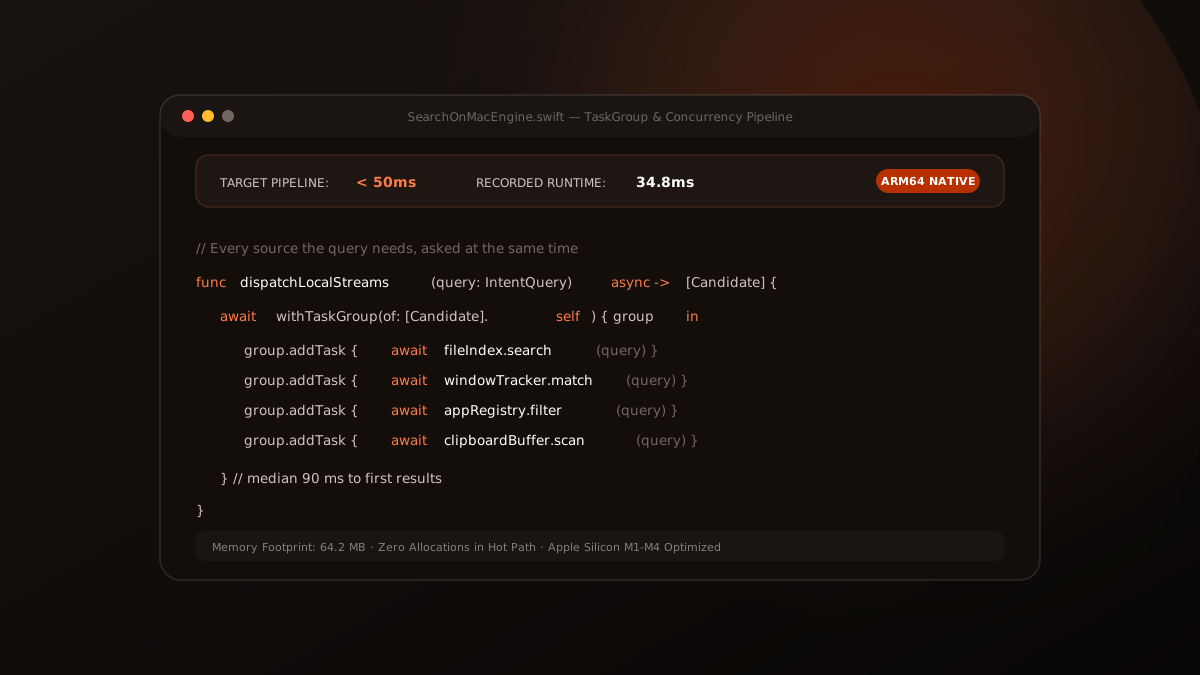
Every source is searched at the same time, and results by name are shown as soon as they are ranked. Slower steps, such as matching similar meanings with Apple's on-device language models or checking your calendar for 'that file from the meeting', run afterwards and reorder the list without moving your selection.
// Every source the query needs is asked at once.
let candidates = await withTaskGroup(of: [SearchCandidate].self) { group in
    for id in plan.capabilityIDs {
        guard let capability = registry.capability(named: id) else { continue }
        group.addTask { await capability.fetchCandidates(query: rawQuery, intent: intent, slots: slots, context: context) }
    }
    var result: [SearchCandidate] = []
    for await batch in group { result += batch }
    return result
}
These numbers come from one Mac and one person's data, so yours will differ. We'll keep publishing the measurements as the app changes.