

Engineering · October 02, 2026
Why Spotlight Fails to Find Files on macOS (and How to Fix It)
Behind the scenes of the macOS Metadata Server daemon (mds), why index corruption happens after updates, and how to rebuild it via mdutil in Terminal.

SearchOnMac Team
macOS Core Systems · 5 min read
You know a file is sitting right there in your Downloads or Documents folder, you can see it with your own eyes in Finder, yet Spotlight insists it doesn't exist. Here is what is happening under the hood when macOS search breaks.
1. The Anatomy of Spotlight: mds and mds_stores
Spotlight is powered by background daemons: mds (Metadata Server) and mds_stores. Whenever a file is created or downloaded, FSEvents notifies mds, which parses file attributes and writes to /.Spotlight-V100 on your drive.
After abrupt reboots or macOS upgrades, journal entries can desynchronize, causing the mds index database to become corrupted.
2. How to Rebuild the Spotlight Index (Terminal Method)
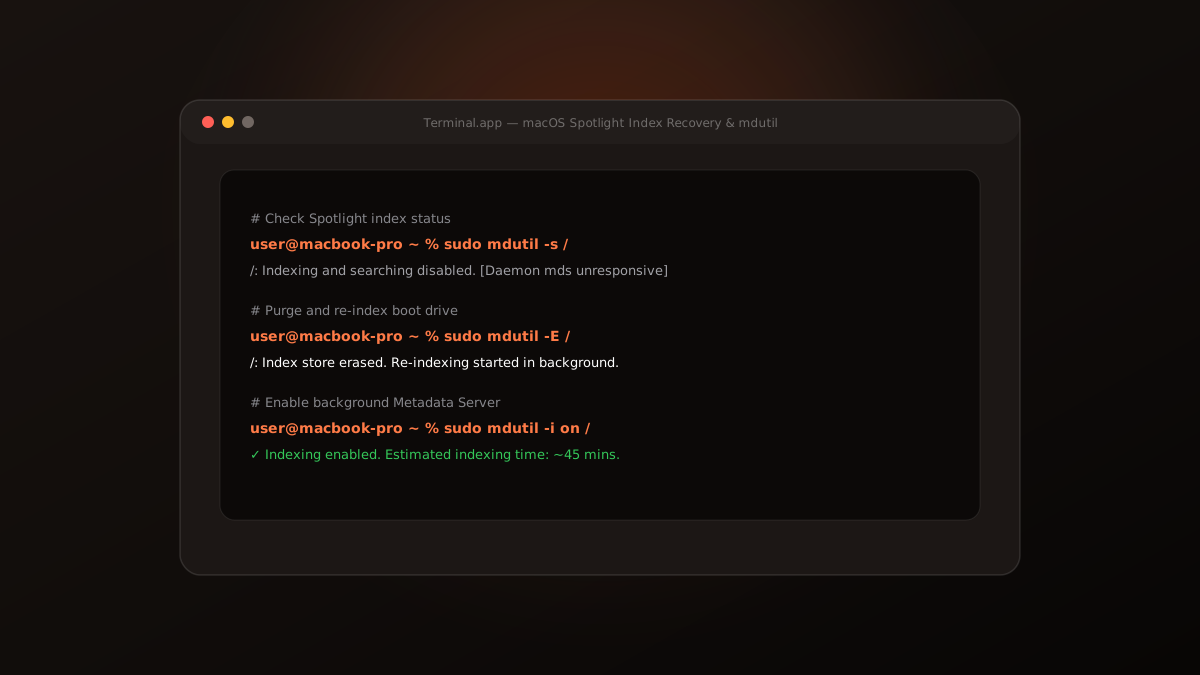
The definitive terminal fix is using mdutil in Terminal:
After running these commands, open Spotlight (⌘ Space) to monitor the re-indexing progress bar.
sudo mdutil -s /
sudo mdutil -E /
sudo mdutil -i on /
3. How SearchOnMac Avoids the Single-Point-of-Failure
SearchOnMac queries Spotlight's metadata API, but pairs it with concurrent low-level APFS file system scans and its own decoupled local index. If Spotlight is rebuilding or hung, SearchOnMac continues finding your files without interruption.
Index corruption is an unfortunate reality of file systems. Knowing how to use mdutil gets Spotlight back on track, while decoupled local tools like SearchOnMac protect you from search downtime.