

Product · October 23, 2026
How to Find Files by Date Modified, Created or Downloaded on Mac
Learn how to use date filters in Spotlight, Finder, and SearchOnMac to locate documents by when you last worked on them.

SearchOnMac Team
Productivity & Search · 4 min read
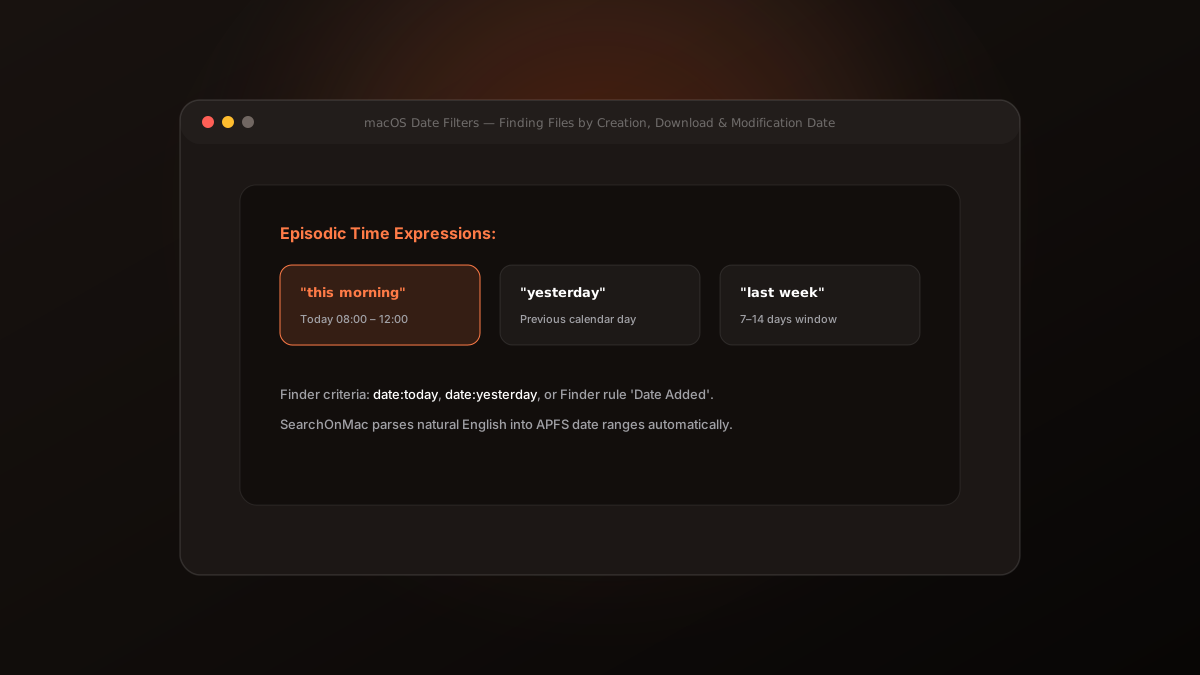
Human memory is anchored in time. We rarely recall that an invoice was named 'INV_2026_0942.pdf', but we vividly remember downloading it 'yesterday morning' or 'last Friday'. Here is how to use date-based file discovery on Mac.
1. Spotlight Date Syntax
Spotlight supports built-in date operators. You can type queries like 'date:today', 'date:yesterday', or specific date ranges like 'modified:2026-10-01-2026-10-15'.
While powerful, typing rigid date formats on a keyboard slows down work.
2. Finder Smart Searches and 'Date Added'
In Finder (⌘ F), you can click the '+' button to add 'Date Created', 'Date Modified', or 'Date Added' rules. This is particularly useful for ~/Downloads, where 'Date Added' reflects when files were saved rather than when the author originally created them.
3. Conversational Time Queries in SearchOnMac
SearchOnMac removes the need to remember date syntax. Its deterministic intent parser decodes conversational time phrases directly into file-system timestamps: 'this morning', 'yesterday afternoon', 'last week', or 'two days ago'.
Searching by time matches how our brains work. Use conversational time queries to jump straight to recent work without memorizing syntax.